A file is refused at upload for one of three reasons: it is not a JPEG, PNG or TIFF, it is smaller than 2 megapixels, or it is over 2 GB or 2,000 megapixels. A print size is refused when it is outside what the chosen paper can print. Low resolution on its own gives a warning, not a block.
Quick reference
| What you see | Why | What to do |
|---|---|---|
| The file is refused as a HEIC/HEIF photo, PDF or other format | Only JPEG, PNG and TIFF are accepted | Export a JPEG or TIFF and upload that |
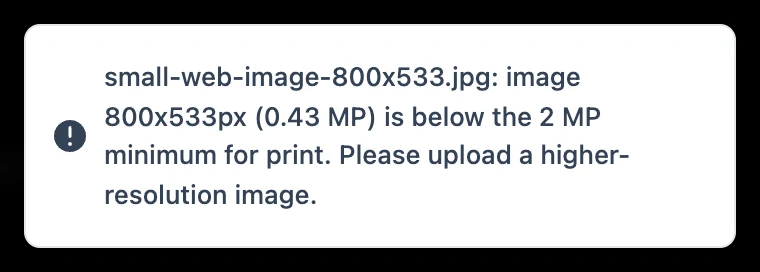
| The file is refused as too small | The image is under 2 megapixels | Find the original, full-size file |
| The file is refused as too large | It is over 2 GB or 2,000 megapixels | Flatten it and save as an 8-bit TIFF or a maximum-quality JPEG |
| "The print size is too large for this file" | The size is beyond the paper's limits, or beyond what the file supports | Reduce the size, choose a wider paper, or re-export at full resolution |
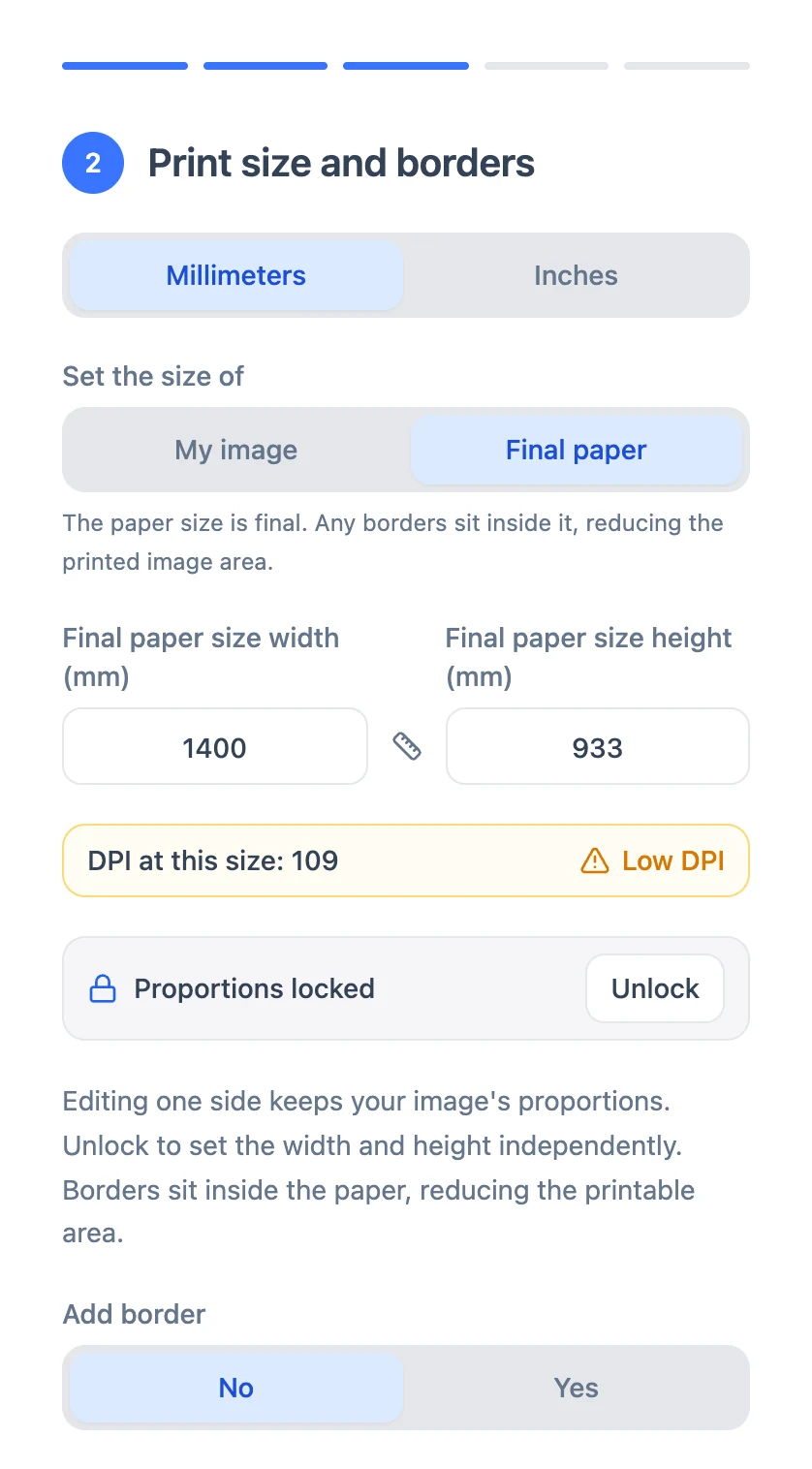
| An amber Low DPI warning | The file is below 200 dpi at the size entered | You can still order; consider a smaller size |
The format is not accepted
We print from JPEG, PNG and TIFF. PDF, PSD, HEIC, WebP, GIF, SVG and AVIF files are refused, so export them to JPEG or TIFF first. HEIC is the format an iPhone or iPad camera often saves in: if the message says your file is "a HEIC/HEIF photo (iPhone format)", export it as a JPEG, PNG or TIFF. The recommended settings are in How to prepare your file for print upload.
The file is too small
There is no minimum file size in megabytes. The only lower limit is on pixels: an image under 2 megapixels (for example 1,600 × 1,200 px) is refused because it cannot make a print of acceptable quality. Screenshots, images saved from a website or social media, and photos passed on by email or a messaging app have usually been shrunk and compressed. Go back to the original camera, scan or design file.
The file is too large
The upper limits are 2 GB per file and 2,000 megapixels. You do not need to compress or reduce print files that are within those limits; keep large fine-art files at full resolution. If a file is over the limit, flatten it and save it as an 8-bit TIFF or a maximum-quality JPEG.
"The print size is too large for this file"
Check two things:
- The paper's limits. We print from rolls, and each paper has a maximum printable width. A print wider than the roll is not possible on that paper however much resolution the file has. Either reduce the dimensions or choose a paper with a wider roll: see Maximum print sizes for C-Type and Giclée prints and Can I order a custom print size?
- The file's pixel dimensions. If the size is within the paper's limits and you are still stopped, re-export the artwork at the largest resolution you have and upload it again.
The Low DPI warning
The size step shows the DPI at this size. Below 200 dpi it turns amber with a Low DPI warning triangle. This does not stop you ordering: we recommend 300 ppi at the print size, and prints start to look soft below about 200 ppi. Large prints are viewed from further away and are more forgiving. To work out what your file supports, use the print-size guide, or ask us to check the file.
When you are unsure how a lower-resolution file will print, a test strip is a low-cost way to find out.
What we convert for you
These are accepted and converted automatically, so they are not a reason for a refusal:
- PNG: printed from a maximum-quality JPEG we make from it, with transparent areas flattened onto white.
- CMYK: converted to Adobe RGB using the profile embedded in the file.
- 16-bit: converted to 8-bit.
- No colour profile: an RGB file with no embedded profile is treated as Adobe RGB.
For control over how your colors convert, our color accuracy guide covers monitor calibration and soft proofing.
The upload keeps failing
Uploads retry automatically, and a failed tile shows its own Retry button. If a file that meets the limits still will not go through:
- Re-export it as a JPEG at maximum quality (12), Baseline Standard, or resave it as a flattened 8-bit TIFF.
- Try a different browser. Use a current version of Chrome, Safari, Firefox or Edge; an old browser that no longer receives updates may not load the site properly.
- Try a different internet connection. For large files use steady wifi and keep the page open until the upload has finished.
You can upload from an iPad or iPhone as well as a computer, because the upload button uses the device's normal file picker. A computer is usually easier for very large files.
If it still fails, email info@creativehub.io with the exact error message.
Can I send the file another way?
Not for printing. Orders are printed from the file in your account at order.creativehub.io, so artwork has to be uploaded there. You are welcome to send us a file by a transfer link when you want advice on paper or maximum size, but the print itself always comes from your upload.
To avoid a refused upload next time, our printing guide explains how to prepare a file and choose a size before you order.