Yes. Send us the file before you order and we will check it free of charge and tell you the largest size we recommend printing it at. It is most useful when you are going large from a phone or camera file, or when you only have a small version of the artwork.
What we check
- Pixel dimensions. From these we give the maximum size we recommend. The benchmark is 300 ppi at the final print size, and 200 ppi is the minimum. For a 400 × 400 mm print, 300 ppi is roughly 4720 × 4720 pixels.
- Print method and paper. We can suggest the print type and paper that suit the file.
We do not review files for image quality or editing, and we do not retouch, resample or upscale them. Files are printed exactly as supplied. If we do not think a file will hold up at the size you want, we will say so and suggest the largest size we would be comfortable printing.
Our guide on how to make prints of your art covers preparing a file and choosing a print size yourself.
How to send the file
- Email the image to info@creativehub.io, attached directly, or as a file-sharing link if it is large. The link must open without a sign-in or verification step.
- Send a high-resolution JPEG or flattened TIFF.
- Tell us the size and the paper you have in mind.
We need the actual file. We cannot download images from pages such as Pinterest or a marketplace listing.
These details help us answer in one reply:
- the pixel dimensions (for example 5000 × 5000 px), or the physical size and dpi the file is set to;
- the color mode;
- any border or ratio you need. Give the image size and the border width, because a border changes the sheet size and not the resolution of the image;
- whether it is a photo, a scan or AI-generated;
- your deadline, if you have one.
When you will hear back
Size checks are answered by our team in the studio. If you write at a weekend or outside studio hours, we reply once the studio reopens.
Check it yourself
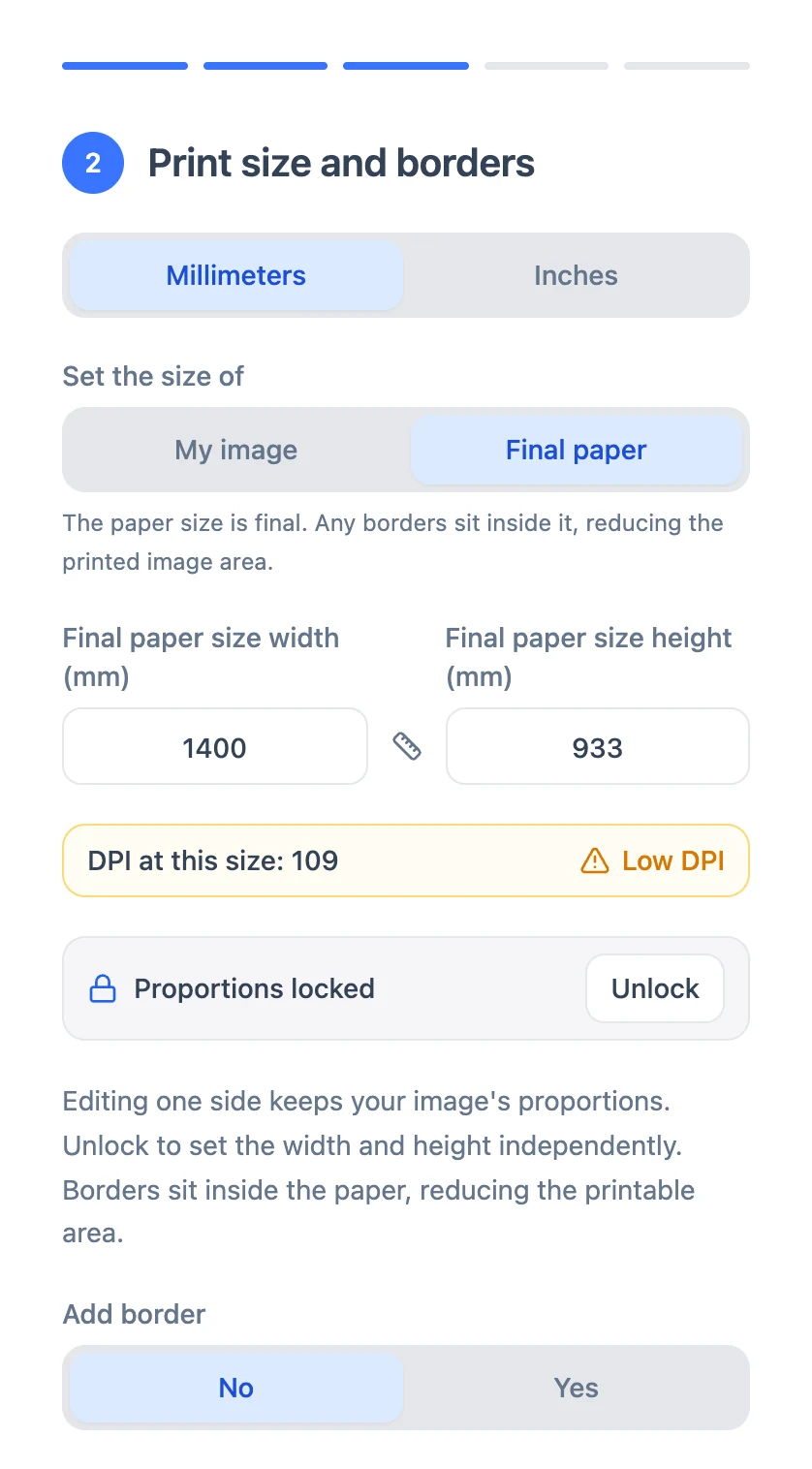
For a rough maximum, divide each pixel dimension by 200: the result is the size in inches. For the ideal, divide by 300. The print-size guide has the full tables. On the ordering site, the size step shows the DPI at this size and turns amber with a Low DPI warning below 200 dpi. The warning does not stop you ordering.
If the file is a little small
- Find the original. Images saved from a website or sent through a messaging app have usually been shrunk. The original camera, scanner or design file will print larger.
- Printing below 300 ppi is your call. It does not make the print fail; fine detail softens as the size goes up. Whether that shows depends on the image, the paper and the viewing distance, and large prints are more forgiving because they are seen from further away. Once a file drops much below 200 ppi at the final size, print smaller.
- Upscaling. You can enlarge the file yourself with a tool such as Adobe Super Resolution or Topaz Gigapixel AI. Upscaling adds pixels, not detail, so treat the result with care.
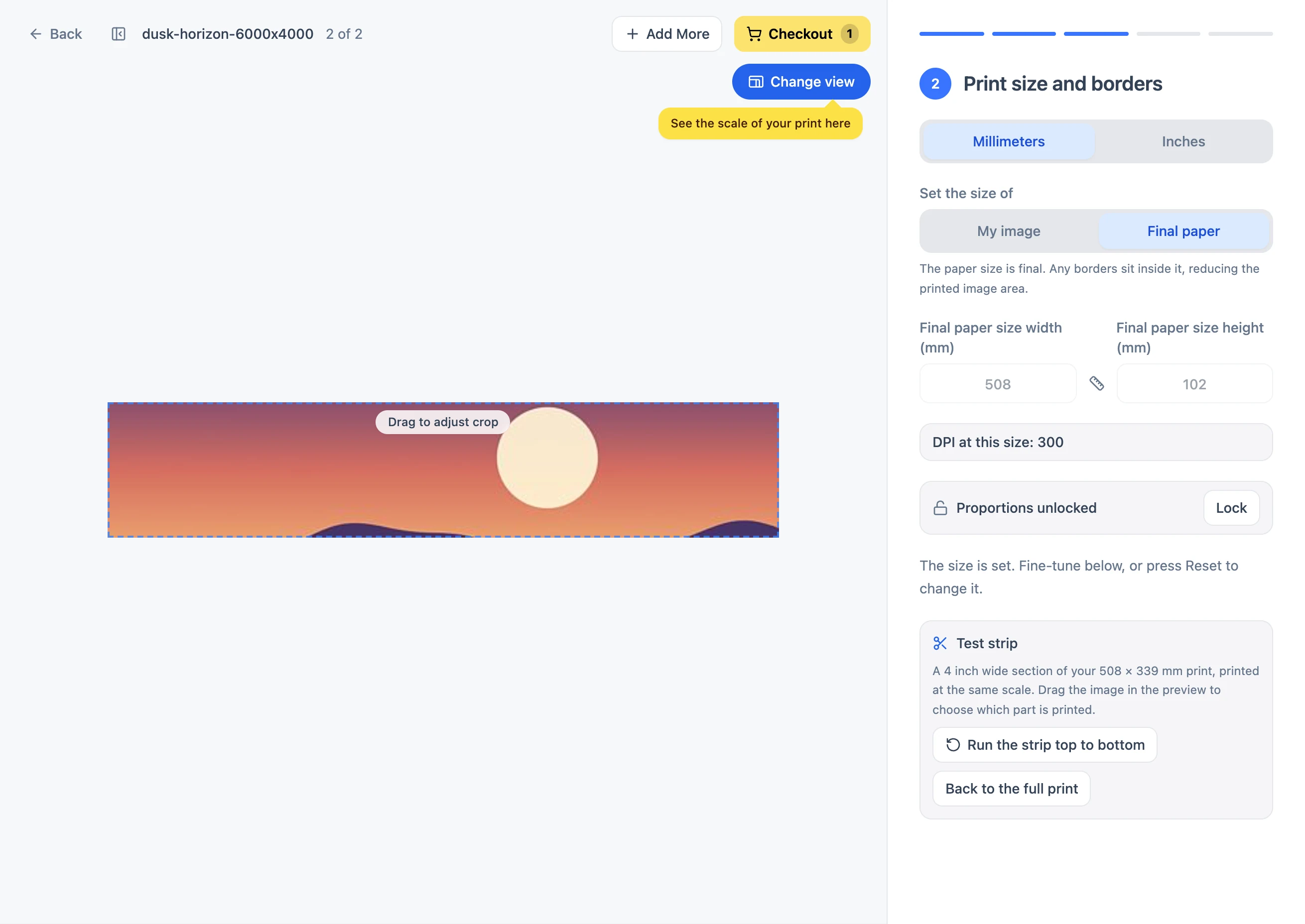
- Order a test strip. It shows sharpness, color and the paper in the hand before you commit to the full print. See How to make a test strip.
When you are ready to order
The check is for advice only. To order, upload the file to your account at order.creativehub.io: we print only from files uploaded there.
A size check tells you how far the file will stretch, and our guide on how to make a test strip shows how to prove it on paper.