Both come from the same cause: the proportions of your file did not match the size you ordered. We print each file exactly as supplied, at the size on the order and in the orientation it was saved, so the ordering site has to either add border or crop to make a differently shaped image fit the sheet.
How your file is printed
We do not edit, resize, rotate or straighten files. What is in the file is what is printed, at the size selected on the order. If the orientation looks wrong, check the export settings or preset you used.
When a print is cropped
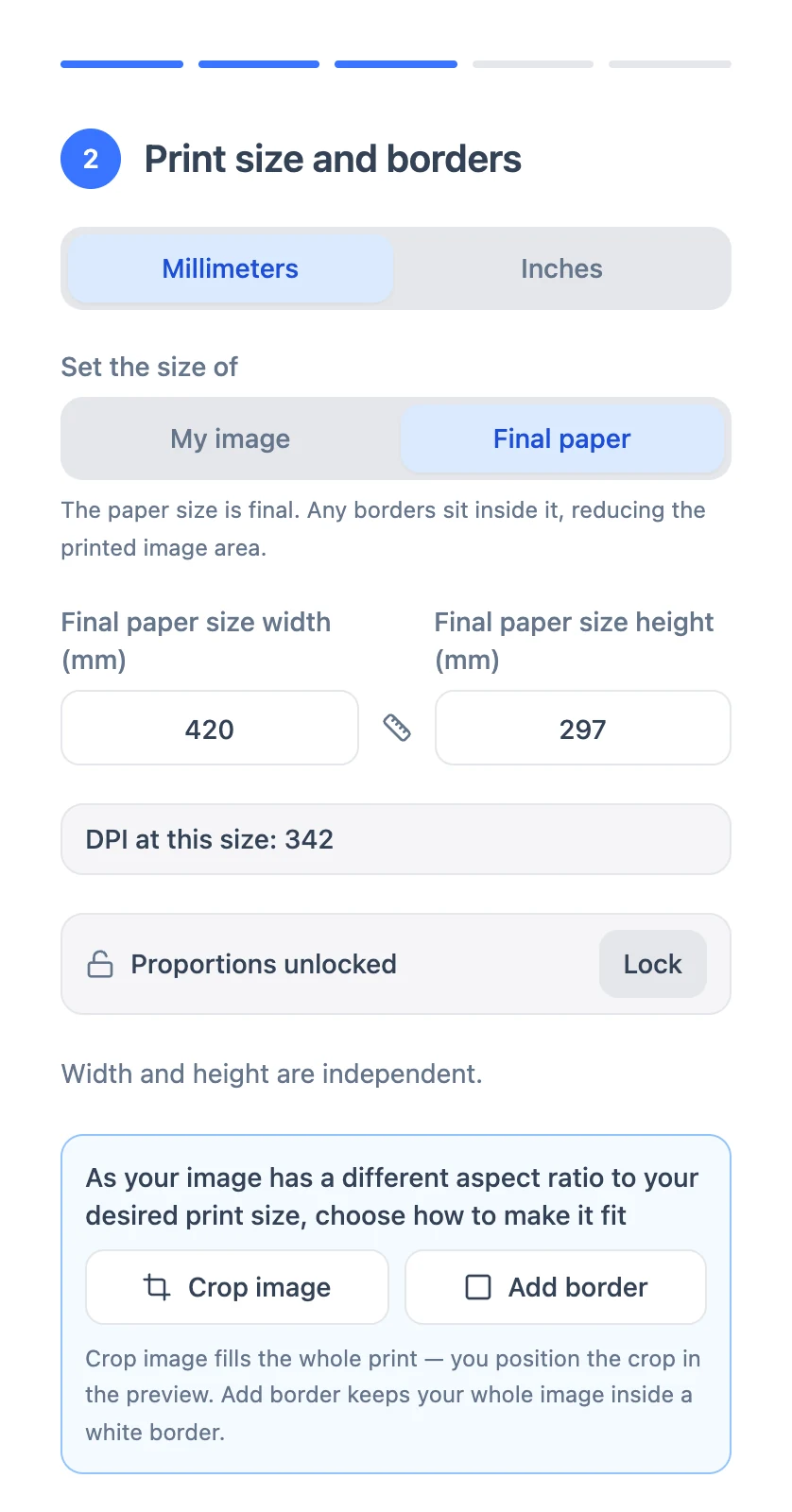
The ordering site does not crop by default. With Set the size of on My image, the whole image is kept and any border is added around it.
A crop only happens when you switch to Final paper, unlock the proportions and choose Crop image rather than Add border. A drag tool then lets you choose which part of the image is kept, and anything outside it is not printed. If a design has come out cut off at the top and bottom, or at the sides, this is the usual reason.
Why a border is not equal all round
A border is equal on all four sides only when the image's proportions match the print size. When they do not, the image is fitted to the paper without being cropped, so one pair of sides ends up wider than the other.
The fix is to crop the image to the proportions of the print before you upload it, then add the border:
- Crop the image to the shape of the size you want. For A2, that is 420 × 594 mm. Lightroom or Photoshop both do this well; see Cropping and resizing in Adobe Lightroom.
- Export a JPEG or TIFF and upload it.
- Enter the size and add your border. A value such as 15 mm will now be even on all four sides.
- Check the preview before you add to the basket.
If you want the finished sheet to be an exact size with an even border inside it, crop to the image area rather than the sheet. For example, an A2 landscape sheet with a 25 mm Even border leaves an image area of 544 × 370 mm, about 6425 × 4370 px at 300 ppi.
The Borders card shows Custom
If you chose Small or Large and later find the Borders card showing Custom with a number in it, nothing has gone wrong. The border was enlarged to avoid cropping your artwork and stored as a custom value. You do not need to change anything.
What to check on your order
- The size on your invoice. A3 is 297 × 420 mm. A print of 297 × 198 mm is not A3; it is the size that was ordered.
- The proportions of your file. Prepare the file at the same proportions as the size you want, or leave space around the artwork so that a crop or border cannot cut into it.
- Borders. A border is only printed if you select one when ordering or include it in the file. See Do prints come with a white border?
- Detail at the edge. Prints are trimmed by hand with a tolerance of 1.5 mm on each side, so allow 1 to 2 mm around anything that must not be cut into. See Why is my print slightly smaller than what I ordered?
The preview looks pixelated
The preview on the ordering site is a low-resolution render and can look soft or pixelated. It does not reflect the quality of your original file, which is kept and used for printing.
If the print does not match the order
If the crop, border or orientation on the print differs from what the order shows, email info@creativehub.io with the order number and a photo of the print, and we will check the order and the file against it.
Proportions are easier to plan before you export, and our guide has a section on what size to print alongside preparing the file.