The Pay button stays disabled until the order has everything it needs, and a note underneath it names the first thing still missing, such as a delivery address, a card or a confirmation. Complete that item and the note updates. The sections below cover the usual sticking points on order.creativehub.io.
The total shows a dash
If a price cannot be fetched, the totals show a dash with a Retry button, and Pay stays disabled until a confirmed quote loads. You are never charged against an estimate. Select Retry to load the price again.
There is no delivery method to choose
The delivery methods, with their arrival dates, appear only once a delivery address is confirmed. The exact estimated completion date shows when you select a delivery or collection option. A full address and ZIP or postal code are needed even if you plan to collect: see How do I choose studio collection at checkout?
Each of those delivery methods is described in more detail on our art print delivery page.
If the same-day option is missing, the cut-off has passed or the chosen paper is not a giclée stock. Our usual timings are in Production turnaround times.
Oversized order, or Get a quote instead of a price
- A mounted piece over 1905 mm on the long side or 1270 mm on the short side shows an Oversized order notice at checkout, and only studio collection can be selected. Get a delivery quote emails the full specification to our customer service team, with you copied in. They price the delivery, reply to you and set the order up for you with a payment link.
- A bespoke frame above 1270 mm on the short side or 1905 mm on the long side shows Get a quote in place of a price. It is quoted by the team and made to order.
The promo code is not working
The Promo code box is under the basket items, before the delivery address. Type the code and select Apply. Do this before you select Pay: the payment page has no code field. If a code is refused, check for:

- an extra space at the start or end of the code;
- a condition on the code, such as a minimum or maximum order value;
- an expiry date that has passed.
We do not run standing public discounts, so codes from voucher websites are not ours.
The payment fails
- Card declined: try another card or contact your bank.
- Payment error: refresh the page and try again. If it keeps happening, contact us with the error code.
- Address not found: the address lookup catches most problems, and you can also enter the address by hand.
Changing what is in the basket
The basket is the Your order column on the Checkout page. Select Edit (the pencil) on a line to change the number of units, then Save. Lower the units to 0, or select Remove, to take the item out. To change the paper, size or framing of an item, configure it again from your library.
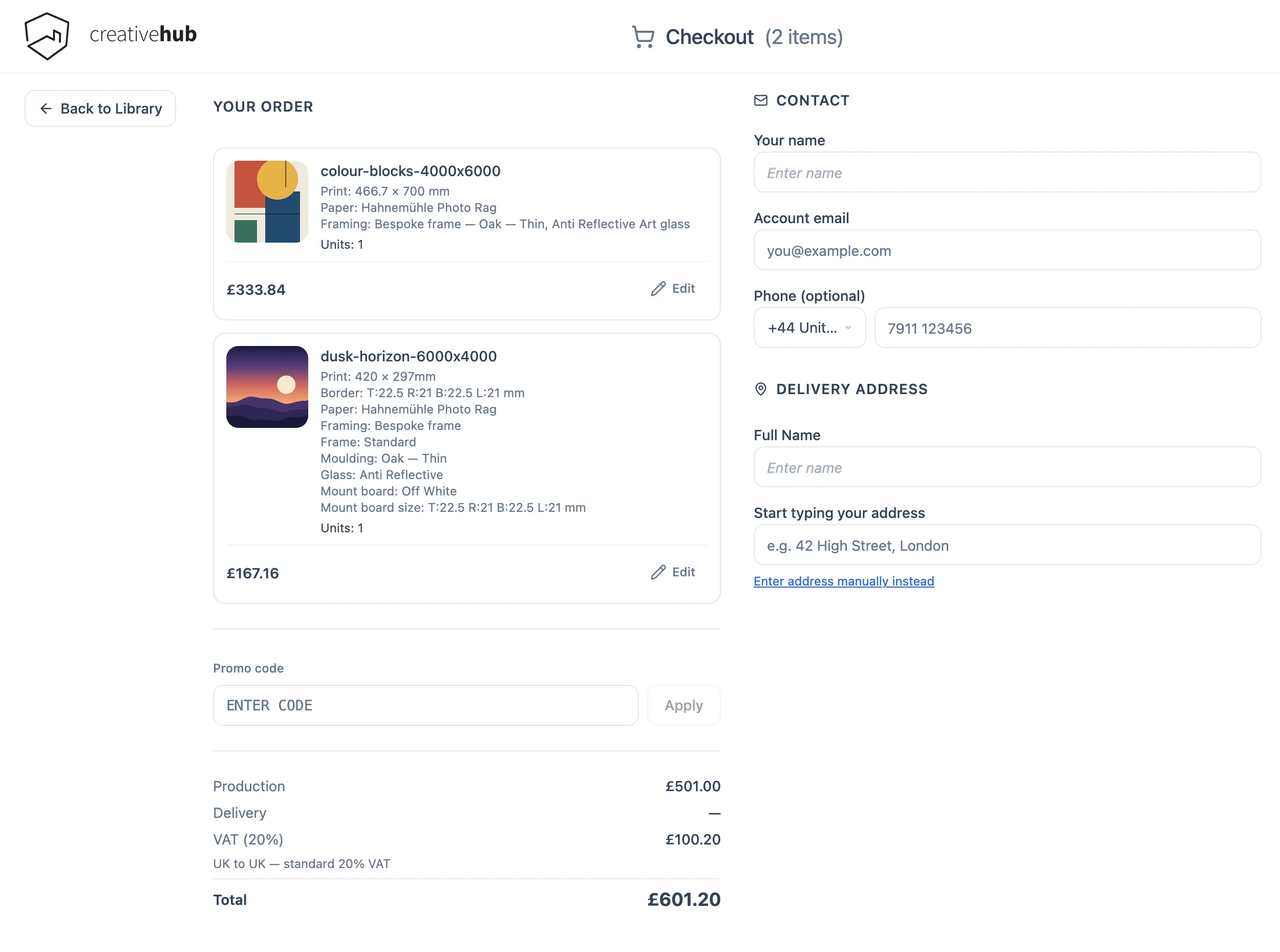
The basket is saved, so you can close the browser and come back to it. Adding items is free of obligation, and prices are live: the total shown at checkout is the current price and the amount you are charged, so read it before paying.
Things checkout does not need
- An account. You can check out as a guest with your name and email; a phone number is optional. You can set a password on the confirmation page to keep the account.
- A note. Notes for production studio (optional) appears once an address is confirmed and takes a message of up to 4000 characters for the studio. There is no gift note or price-hiding option.
Can you place the order for me?
No. Our team does not place orders on your behalf, apart from the quoted oversized pieces above. You place the order yourself, and the basket shows the exact price and delivery date before you pay. If you would like a quote first, send us the sizes, quantities and paper. When several pieces belong together, such as the panels of a triptych, put them in one basket so they are produced together and sent as one delivery.
To know roughly what to expect before the checkout total loads, look up our printing, mounting and framing prices by size.